Uploading, Updating, and Deleting an Asset
Upload an Asset
-
From the Assets page in Miris Portal, click New asset in the top-right corner.
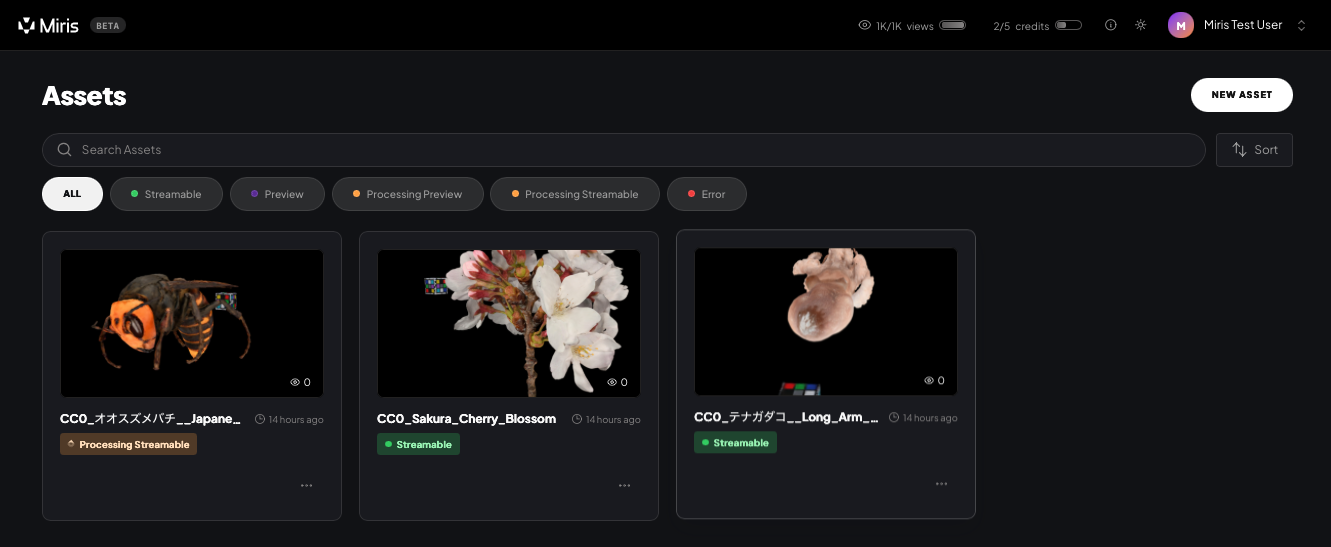
-
In the upload dialog, drag and drop your file into the upload area, or click to browse. Enter a name in the Asset name field and optionally add tags.
Supported formats:
.usd,.usda,.usdc,.usdz, or a folder containing your asset and its dependencies. Maximum upload size: 10GB.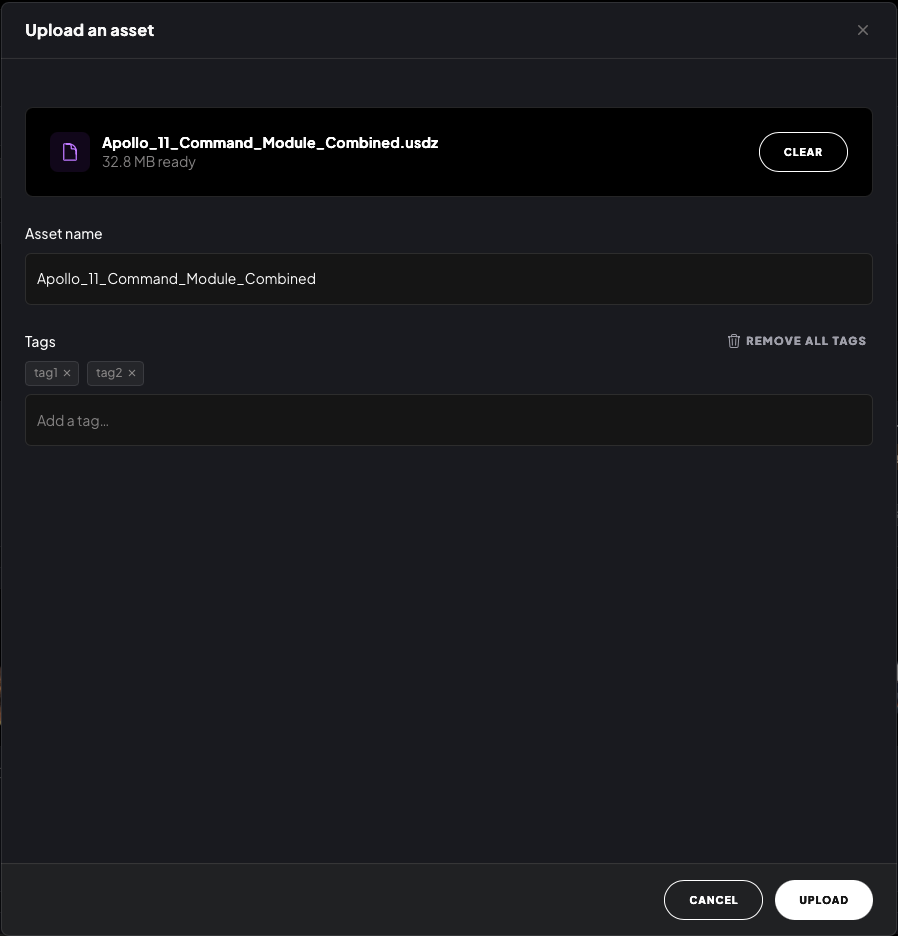
-
Click Upload. Miris will automatically begin generating a Preview of your asset.
Review the Preview
A Preview is a lower-fidelity version of your asset, typically ready in 5–10 minutes. It lets you check lighting, color, and overall appearance before spending a generation credit.
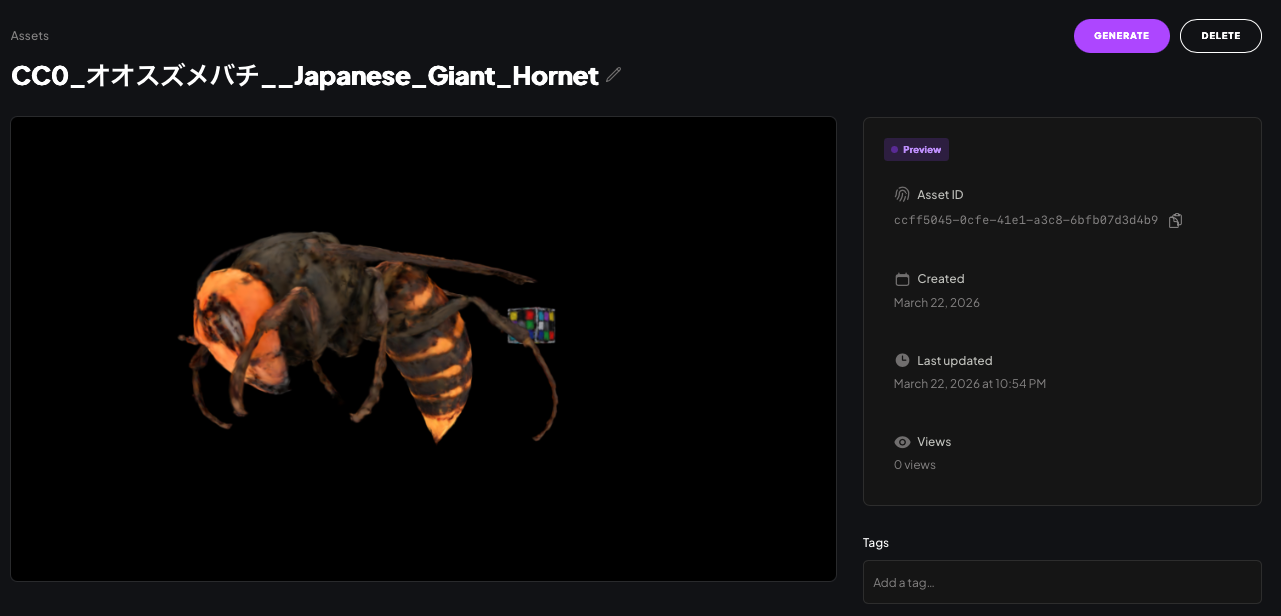
Once your Preview is ready, open the asset to review it.
Generate a High Fidelity Asset
If you're happy with the Preview, you can generate the full high-fidelity streamable asset.
Generating a high-fidelity asset uses one of your 5 monthly high-fidelity credits.
-
From the asset's details page, click Generate in the top-right corner.
-
A confirmation dialog will appear. Click Generate to start the creation of a high fidelity, streamable asset.
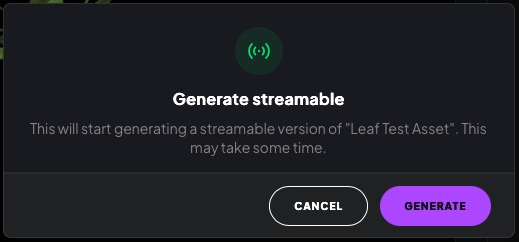
Generation may take some time depending on the size of your asset. Once complete, the asset status will update and it will be ready to stream.
Asset Details Page
The Asset Details page gives you a full view of an individual asset and lets you interact with it, manage its metadata, share it, and delete it.
To open an asset's details page, click on any asset card from the Assets page in Miris Portal.
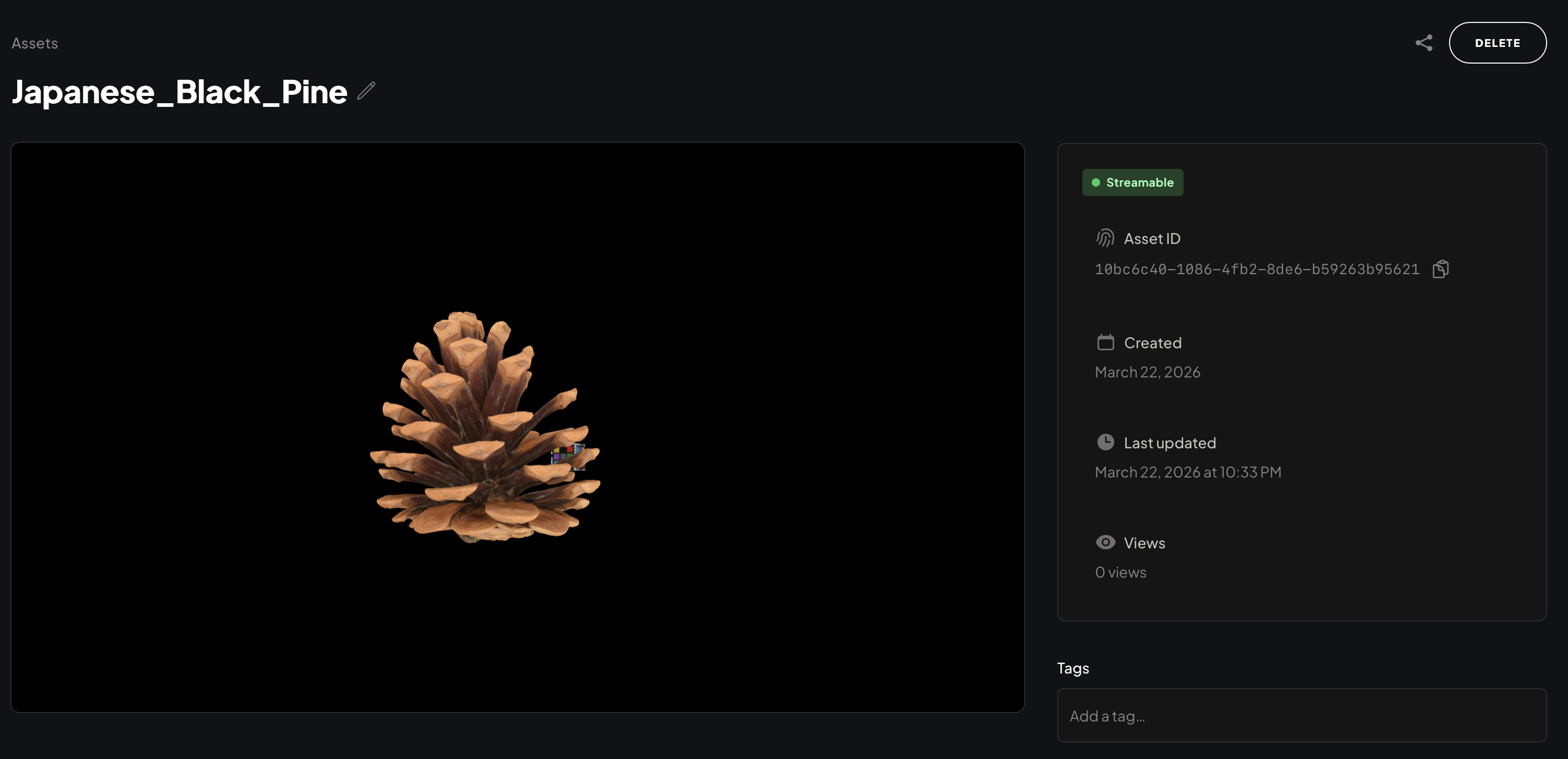
The left side of the page shows a live 3D preview of your asset.
- Left-click + drag — orbit around the asset
- Scroll — zoom in and out
- Right-click + drag — translate the asset up, down, left, or right
Rename an Asset
Click the pencil icon next to the asset name at the top of the page. The name becomes an editable text field — type your new name and press Return to save.

Manage Tags
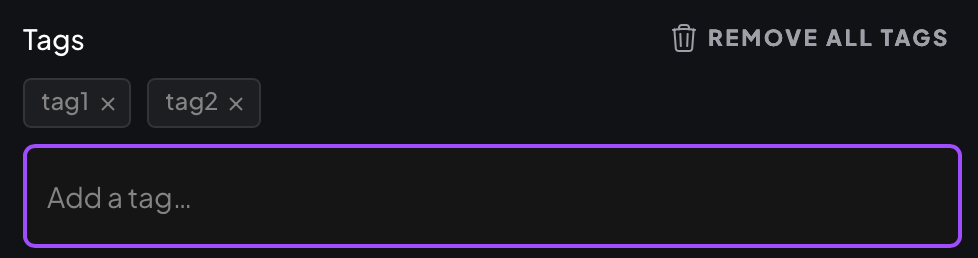
In the Tags section, click the Add a tag... field and type a tag name. Press Return to add it. Tags appear as chips with an × button to remove them.
Copy Asset ID
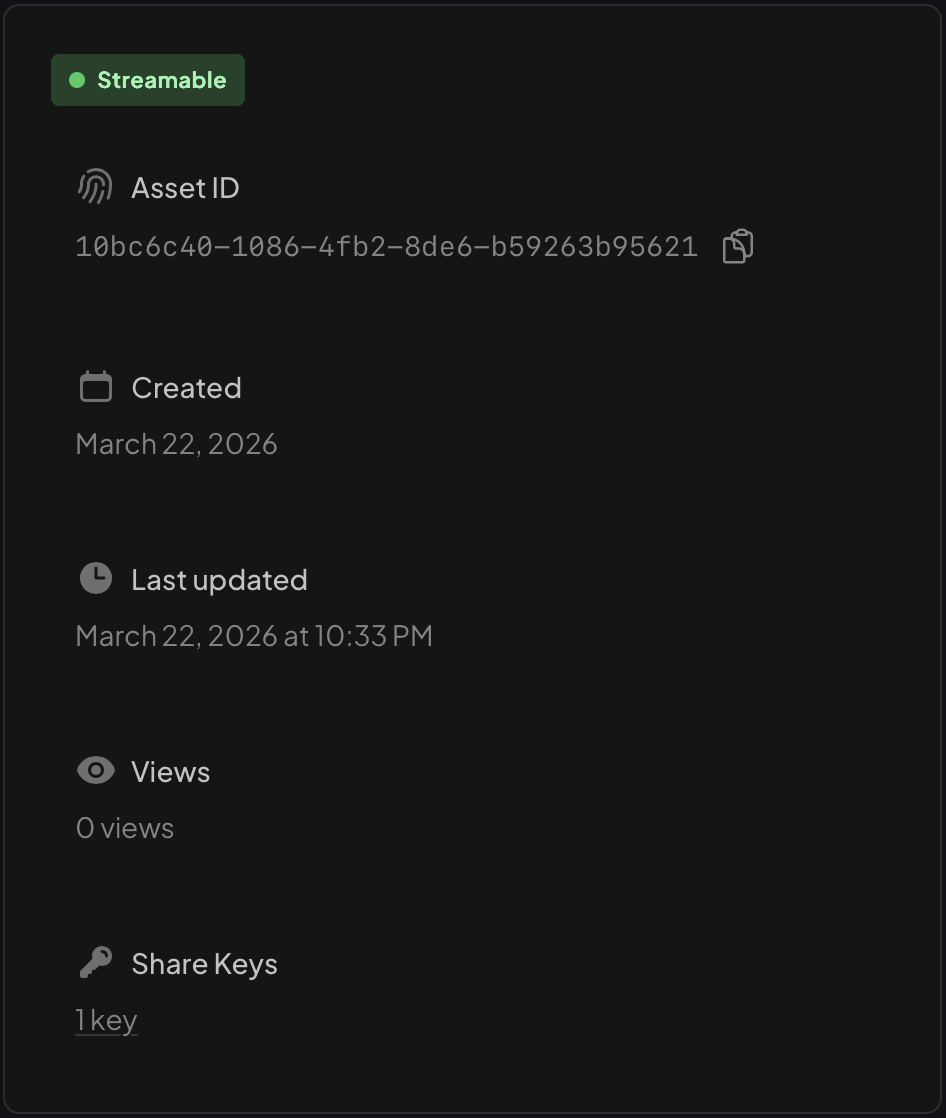
The asset's UUID is required for streaming the asset in your integrations. In the right panel, click the copy icon next to the Asset ID.
Share an Asset
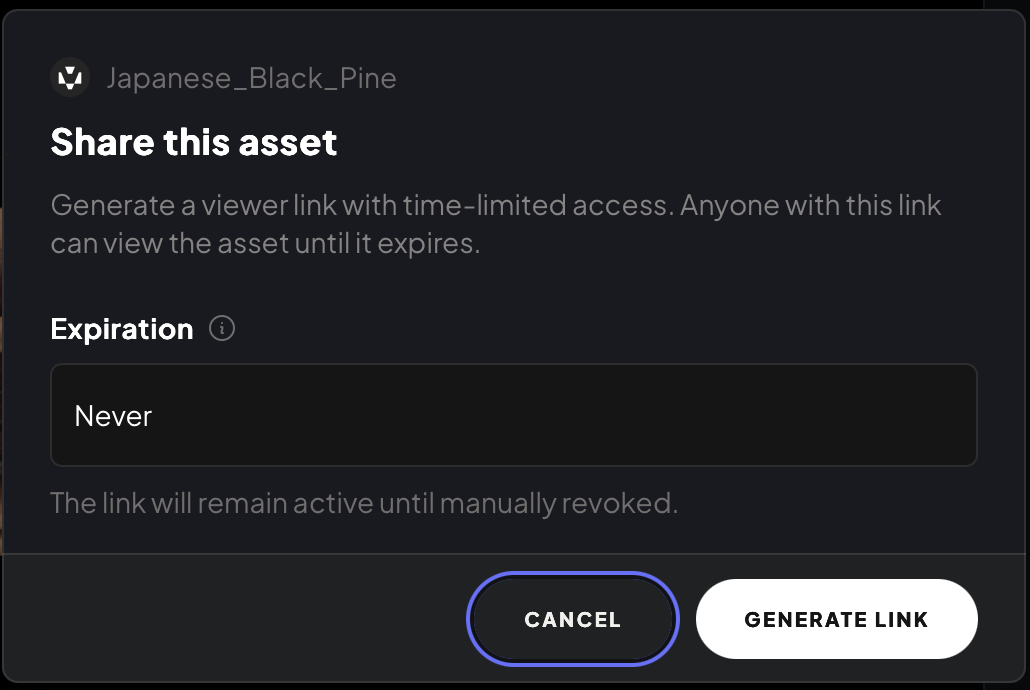
You can generate a time-limited share link that lets anyone view the asset directly in their browser.
-
Click the share icon in the top-right corner of the page.
-
Choose an Expiration for the link and click Generate Link.
-
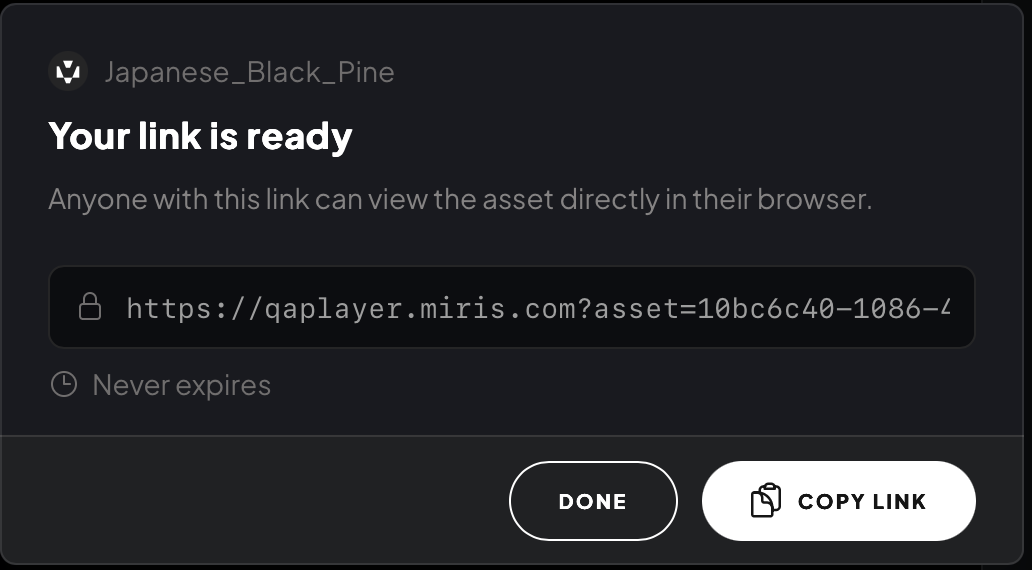
Copy the link from the confirmation dialog and click Done.
Delete an Asset
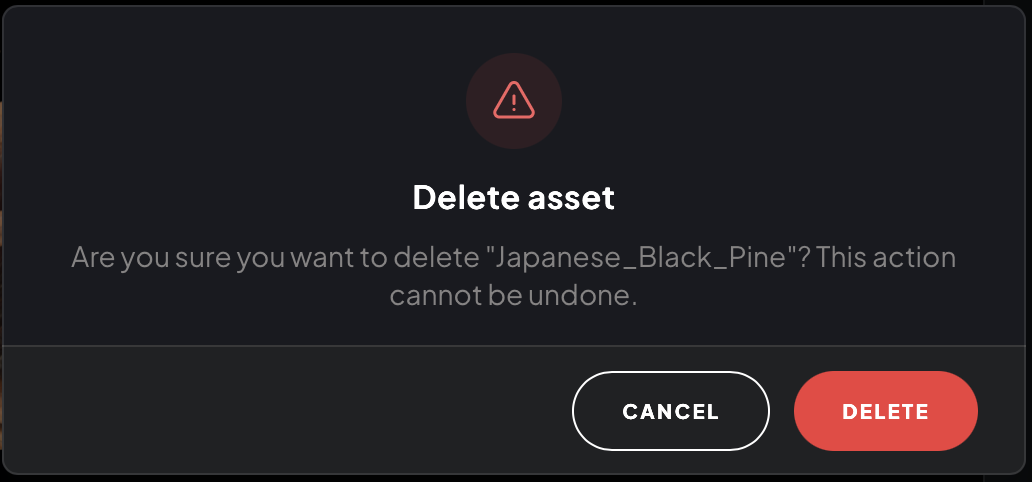
Deletion cannot be undone.
-
Click Delete in the top-right corner of the page.
-
A confirmation dialog will appear. Click Delete to confirm.