Viewer Key Management
Manage your viewer keys using the Miris Portal.
Viewer keys authorize access to your streaming assets. Each key can be given a name, an optional expiration date, and optional tags that scope which assets the key can access.
Your viewer key is only displayed once at creation — copy it immediately and store it somewhere safe. It cannot be retrieved again.
Create a Viewer Key
Miris Portal
-
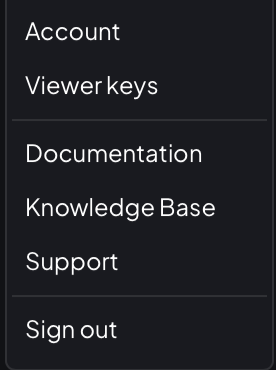
Click your account name in the top-right corner and select Viewer keys.
-
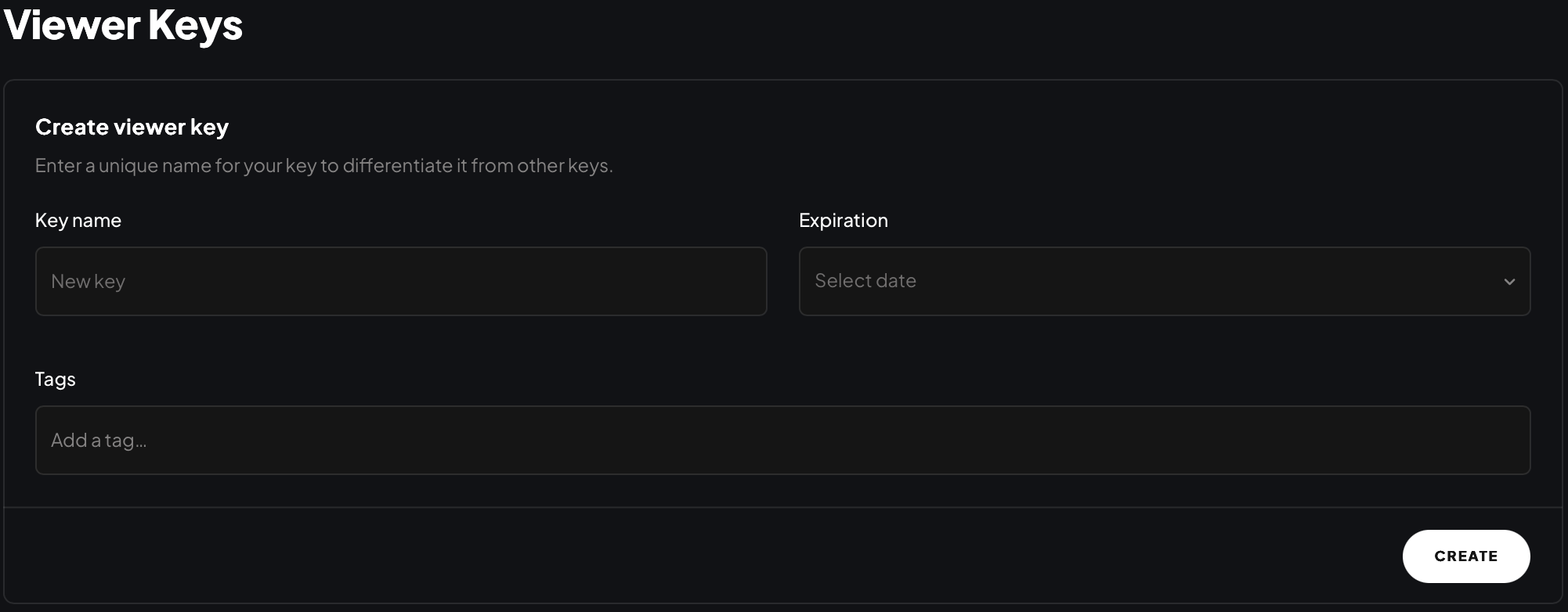
To create a new Viewer Key, enter a Key name, choose an Expiration, and optionally add Tags to scope which assets this key can access.
Scoping access with tagsA key with tags will only stream assets that share at least one of those tags. A key with no tags can access all of your assets.
-
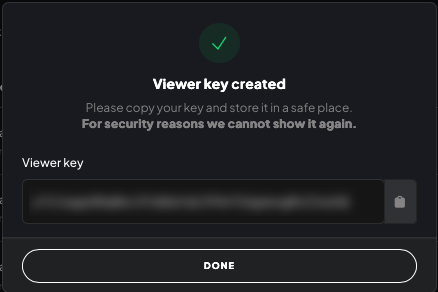
Click Create. A modal will display your new Viewer Key.
-
Copy the Viewer Key using the copy button, then click Done.
cautionThis is the only time the key will be shown. It cannot be retrieved after you close this dialog.
Scoping Access with Tags
By default, a viewer key can access all of your assets. You can restrict a key to a subset of assets by adding tags to it — the key will then only work with assets that share at least one of those tags.
For example, a key tagged product-demo will only stream assets that also have the product-demo tag. Assets without that tag will be inaccessible to anyone using that key.
Tags are set when creating a key and cannot be changed afterward. If you need different tag scoping, create a new key.
List Viewer Keys
Miris Portal
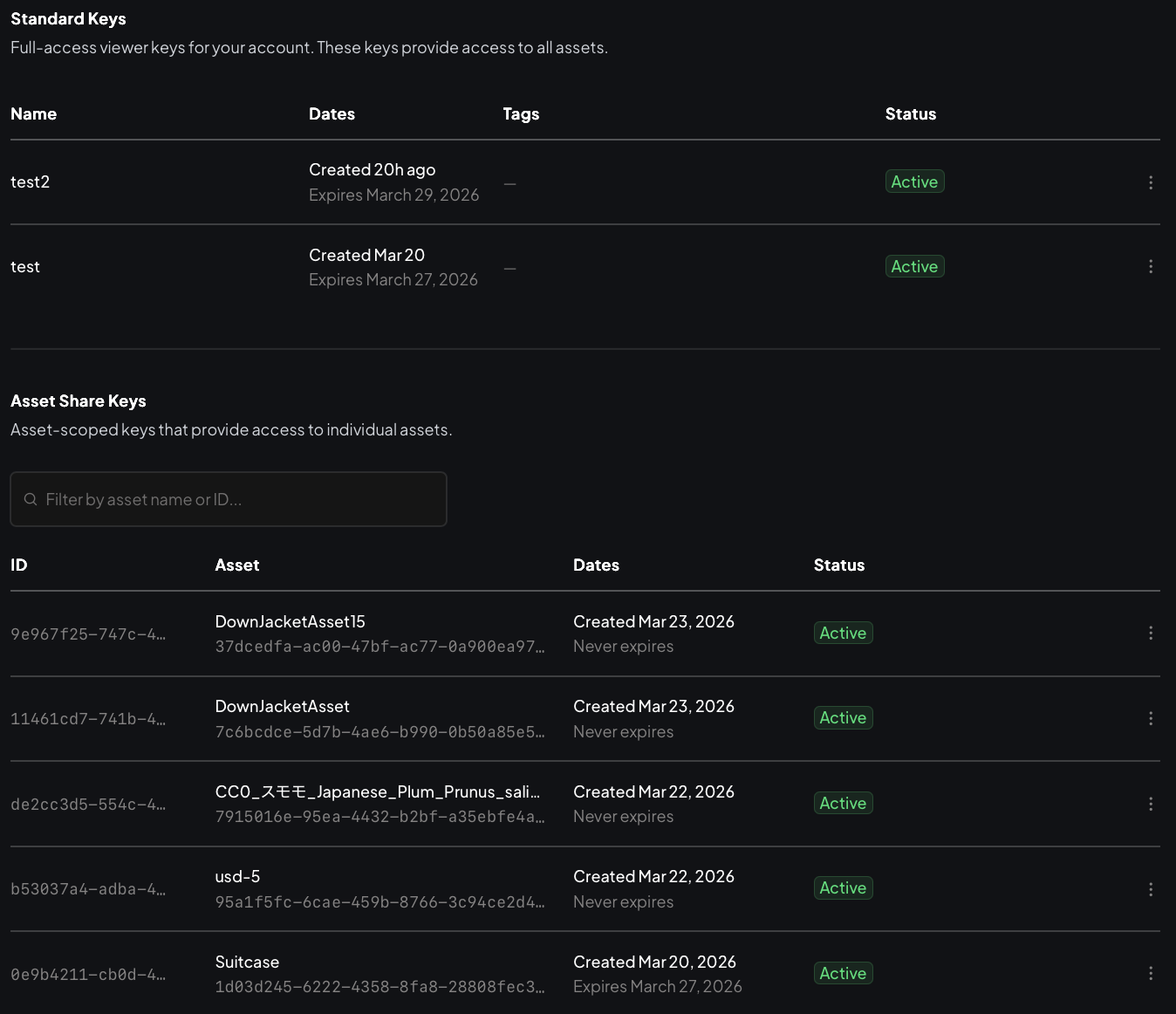
Go to Viewer keys (top-right account menu). The page displays two types of keys:
Standard Keys are full-access keys created through this page. They provide access to all of your assets unless scoped with tags. Use the ⋮ menu to deactivate, reactivate, delete, or modify a key's tags.
Asset Share Keys are created automatically when you share an individual asset. Each key is scoped to that asset only. Use the ⋮ menu to deactivate, reactivate, or delete them.
Deactivate a Viewer Key
Deactivating a key immediately blocks all requests that use it. The key remains in your list and can be reactivated.
Miris Portal
-
Go to Viewer keys (top-right account menu).
-
Click the ⋮ menu on the key you want to deactivate and select Deactivate.

-
The key's status will change to Inactive.

Reactivate a Viewer Key
Miris Portal
-
Go to Viewer keys (top-right account menu).
-
Click the ⋮ menu on the inactive key and select Reactivate.

-
The key's status will change back to Active.
Delete a Viewer Key
Deletion cannot be undone. Any integrations using the deleted key will immediately stop working.
Miris Portal
-
Go to Viewer keys (top-right account menu).
-
Click the ⋮ menu on the key you want to delete and select Delete.